Audio Chatting using Mumble (optional, but highly recommended)

Huh?
Audio chat is a way for people to talk to each other online, like a telephone conference line. On the Internet, this is accomplished using Voice Over IP (VOIP) software and, in the case of Faolan's Minecraft setup, the Mumble VOIP server and client software, which is free and open source.
Why?
While Minecraft has in-game text messaging, that isn't really an effective way to communicate, so we have set up Mumble so that everyone can talk to each other (when they have the Mumble client running and whether or not they are actually playing Minecraft). We just need to get a Mumble client installed on your computer for you to be able to participate. The server requires a password to connect, so no one but Faolan's friends will be on. Faolan or Faolan's dad can share it with you.
Important Note
A set of earbuds with a microphone or a microphone headset is practically required; otherwise you will either experience a lot of feedback or have to spend a lot of time getting your microphone and audio levels set just right in the Audio Wizard.
Okay, how do I get Mumble?
Download the client (“mumble”) at www.mumble.com/mumble-download.php.

Install and run Mumble. After going through the initial settings wizard, it will automatically open a list of public servers.
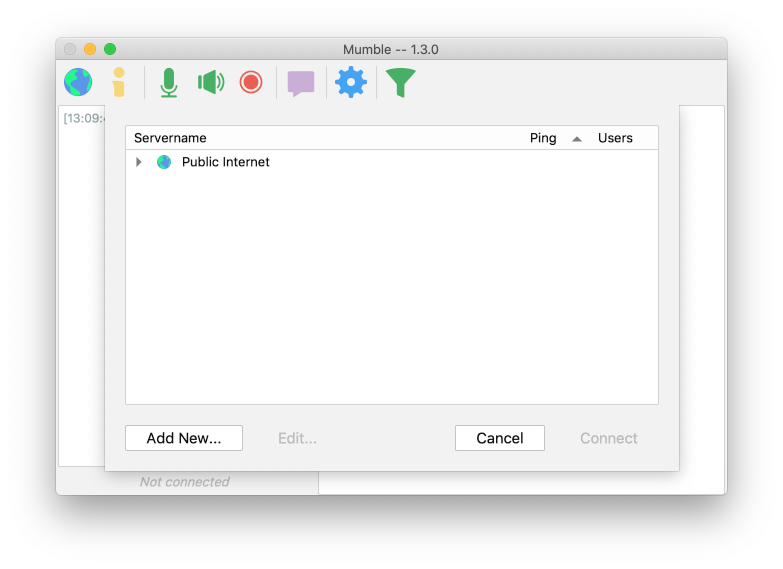
We don't want that, though; instead, click on Add New….
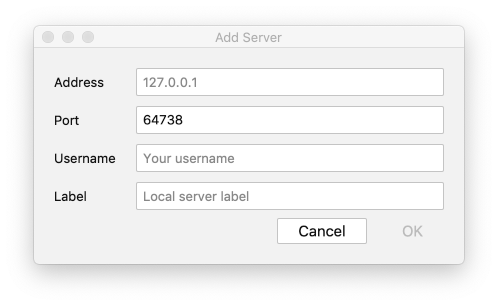
Fill out the server information, substituting your own Username, which can be whatever you want.
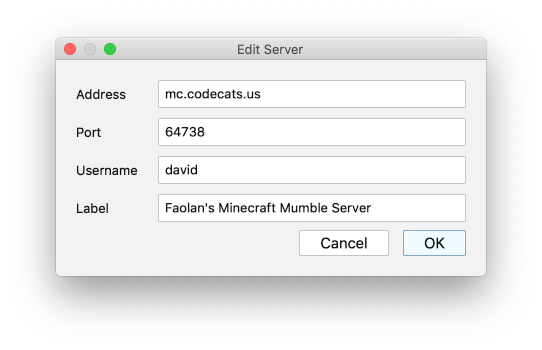
Your Bookmarks will now look like this:
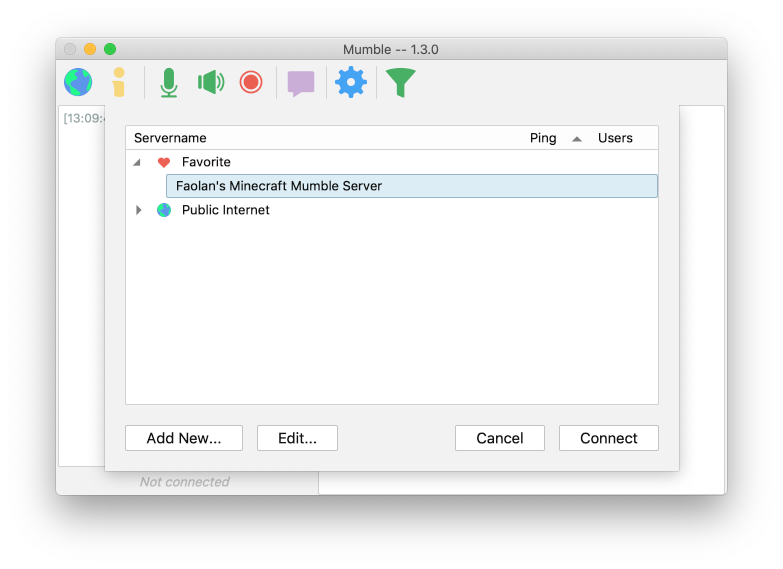
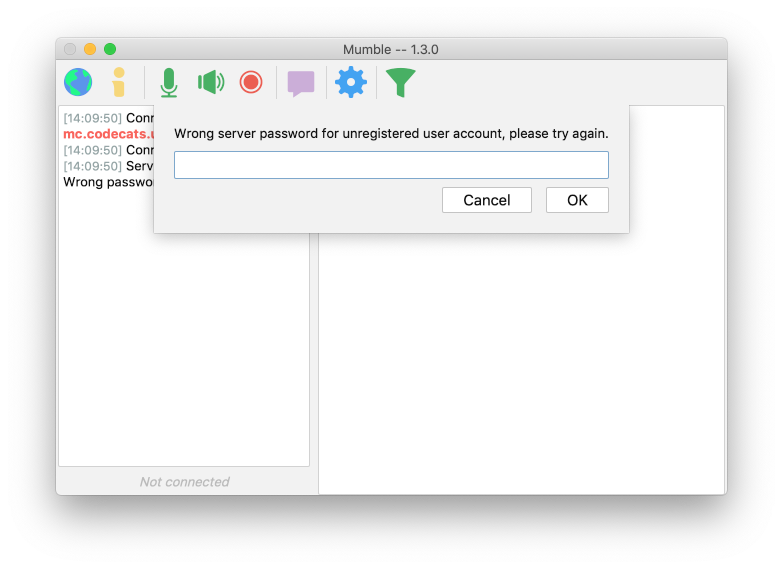
When you double-click on Faolan's Minecraft, you will be prompted for the server password, which you can get from Faolan or Faolan's dad.
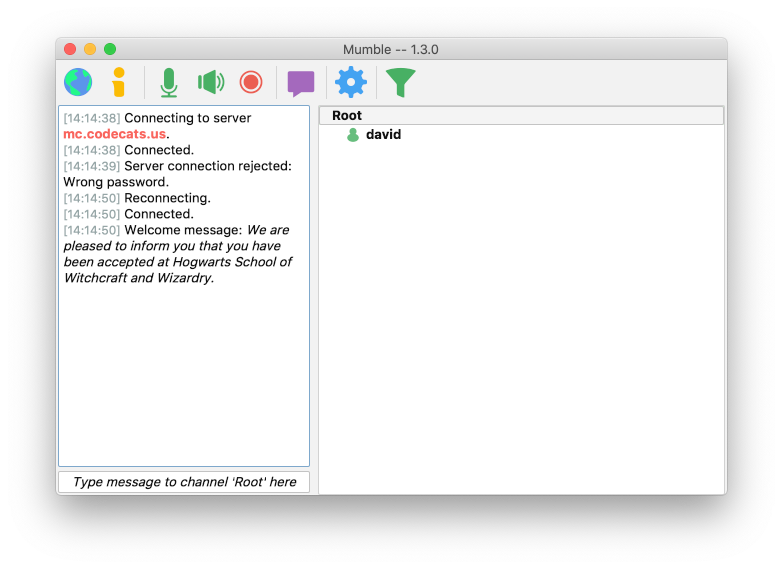
If you have entered the password correctly, you will see a new window that shows the status of anyone else who is currently connected, plus the history of a text chat.
To leave the audio chat, just close Mumble. When you start up Mumble again in the future, just pick Faolan's Minecraft from the Favorites.